





✓ Step-by-step guide
Install IPTV Smarters Pro
on Samsung / LG Smart TV
Follow these steps to get IPTV Nords running on your Samsung / LG Smart TV with IPTV Smarters Pro.
1
Find IPTV Smarters Pro in Your TV App Store
IPTV Smarters Pro is available on Samsung (Tizen) and LG (webOS) Smart TV app stores.
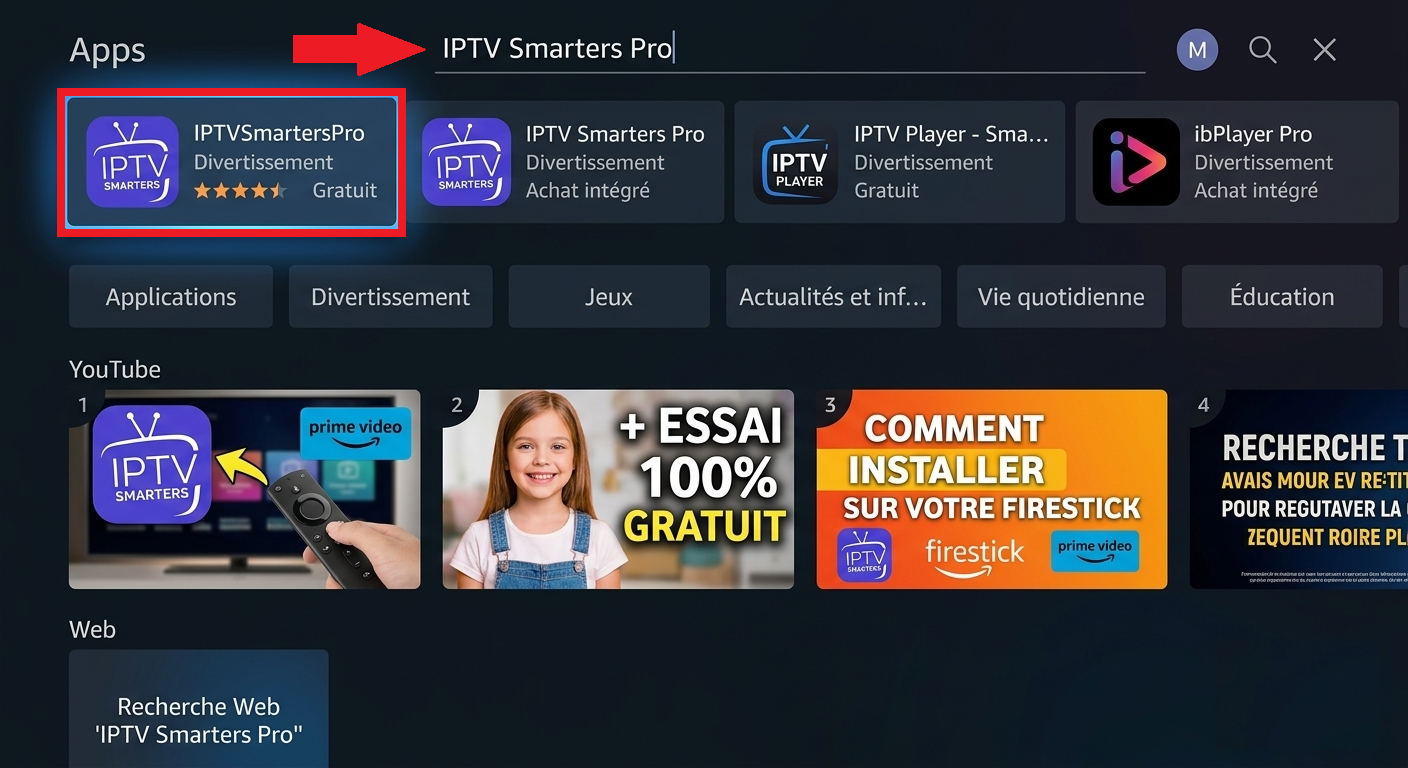
How to do it:
- Samsung: Press Home → Apps → Search icon → type IPTV Smarters Pro
- LG: Press Home → LG Content Store → Search → type IPTV Smarters Pro
- Select the app from results and tap Install
- Open the app once installed
2
Open IPTV Smarters Pro and Choose Login Method
Launch the app and select how to add your IPTV Nords playlist — M3U URL or Xtream Codes.
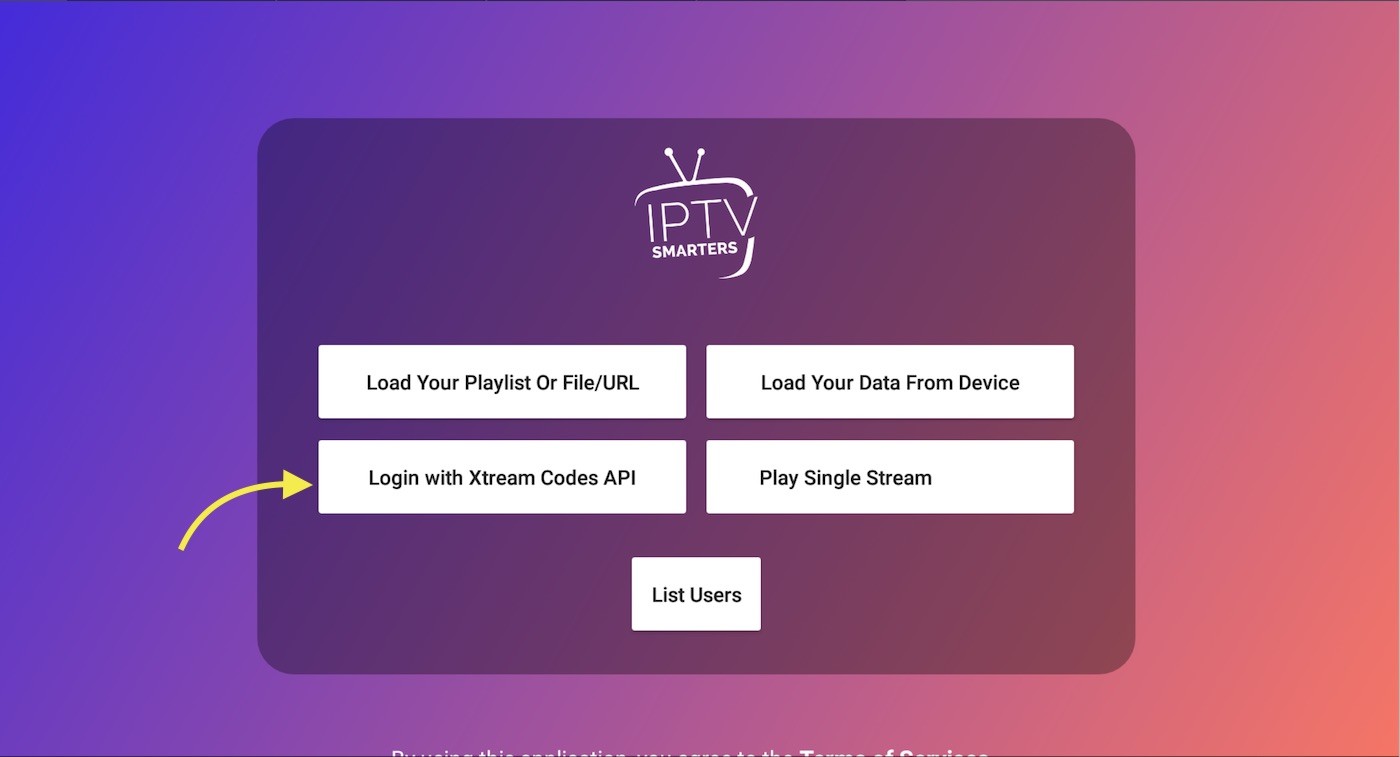
How to do it:
- Open IPTV Smarters Pro on your Smart TV
- Select Add User
- Choose Load playlist or file / URL for M3U, or Xtream Codes API
3
Enter Your IPTV Nords M3U URL
Paste your M3U URL from your IPTV Nords welcome email to load all channels.
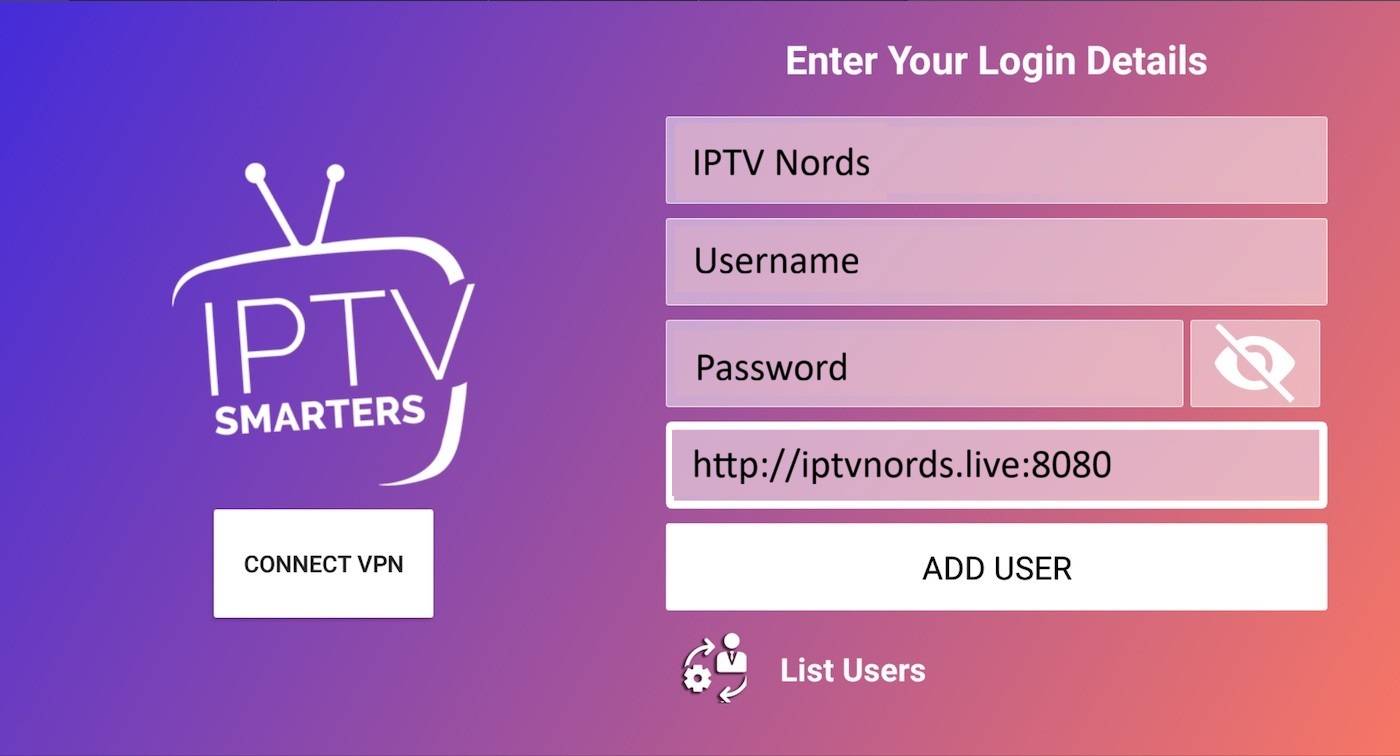
How to do it:
- Enter a Playlist Name: IPTV Nords
- Paste your IPTV Nords M3U URL:
http://server.iptvnords.com:PORT/get.php?username=XXXX&password=XXXX&type=m3u
- Tap Add User — channels load in 10–30 seconds
📧 Your M3U URL is in your IPTV Nords welcome email. Contact live chat if you need it resent.
4
Browse Your Channels with EPG
All 19,000+ channels are loaded. Use the TV remote to navigate Live TV, Movies and Series.
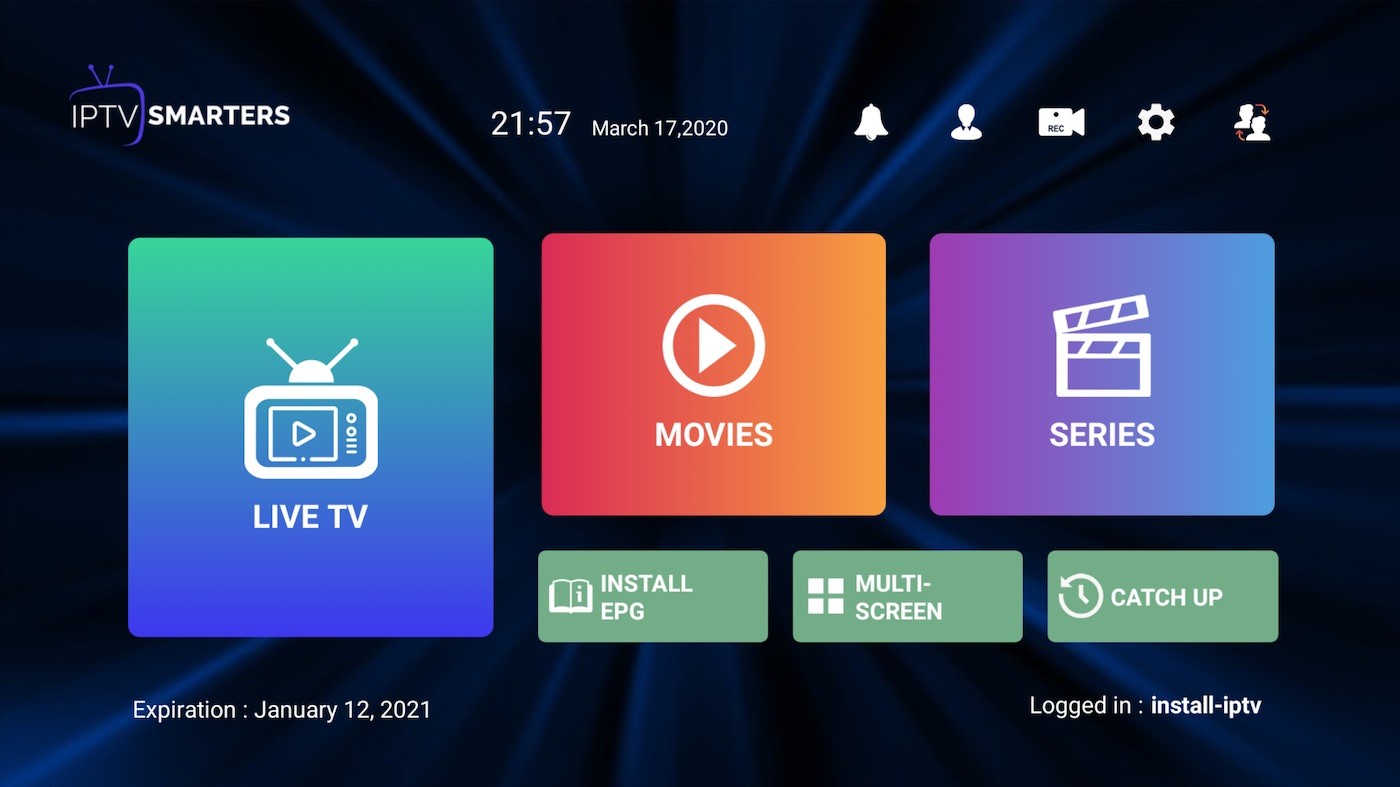
How to do it:
- Use the remote to navigate Live TV, Movies and Series
- Press the EPG button to open the programme guide
- Press OK on any channel to start watching
💡 For best quality set stream to HD or FHD. Our servers support up to 4K on compatible devices.