





✓ Step-by-step guide
Install IPTV Smarters Expert
on Windows PC
Follow these steps to get IPTV Nords running on your Windows PC with IPTV Smarters Expert.
1
Install IPTV Smarters Expert from the Microsoft Store
IPTV Smarters Expert is available free on the Microsoft Store for Windows 10 and 11. A premium upgrade removes ads.

How to do it:
- Open the Microsoft Store (Windows key → Microsoft Store)
- Search for IPTV Smarters Expert or visit apps.microsoft.com/detail/9mvx7c3q1156
- Click Get to install — the base app is free
- Open the app once installed
2
Add Your IPTV Nords Playlist
IPTV Smarters Expert supports M3U URL, Xtream Codes API and Stalker Portal.
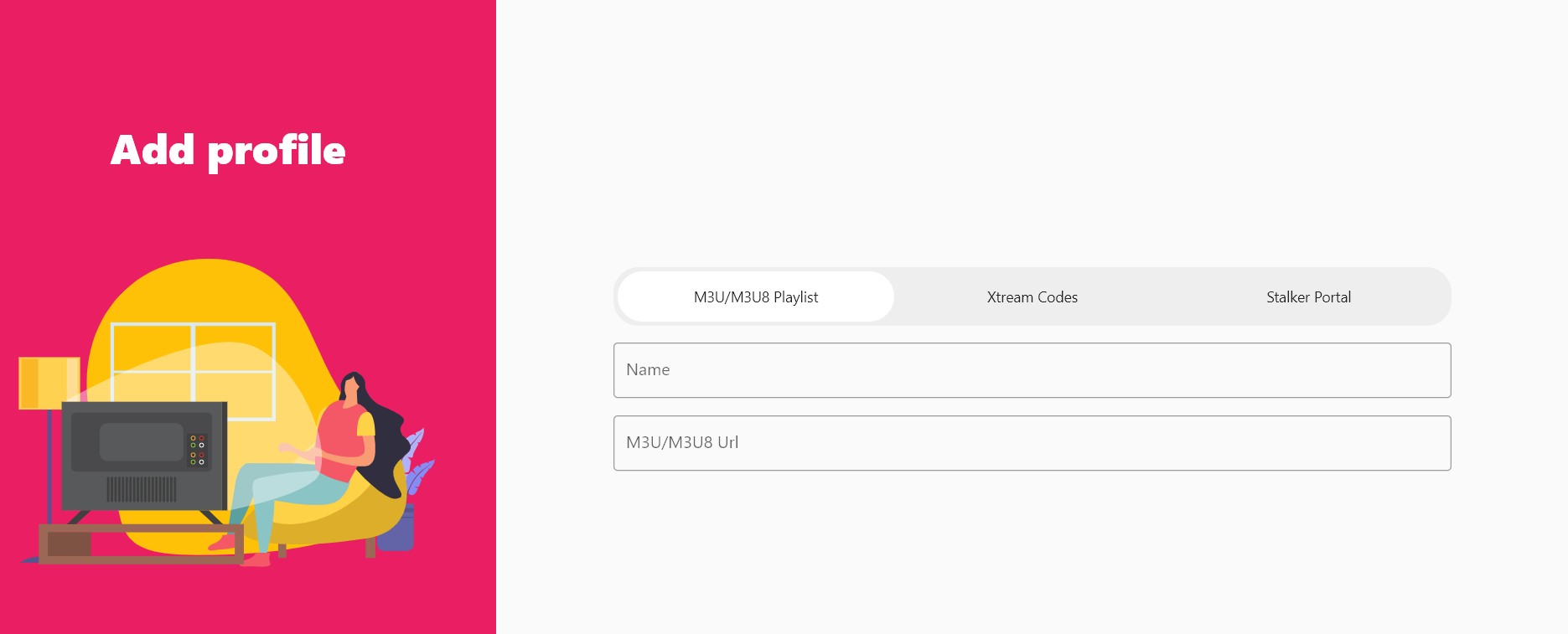
How to do it:
- Open IPTV Smarters Expert
- Click Add Playlist or the + button
- Choose: M3U / M3U8 URL, Xtream Codes API or Stalker Portal
3
Enter Your IPTV Nords XTREAM CODE Credentials
Use your credentials from your welcome email. The app auto-sorts channels into Live TV, Movies and Series.
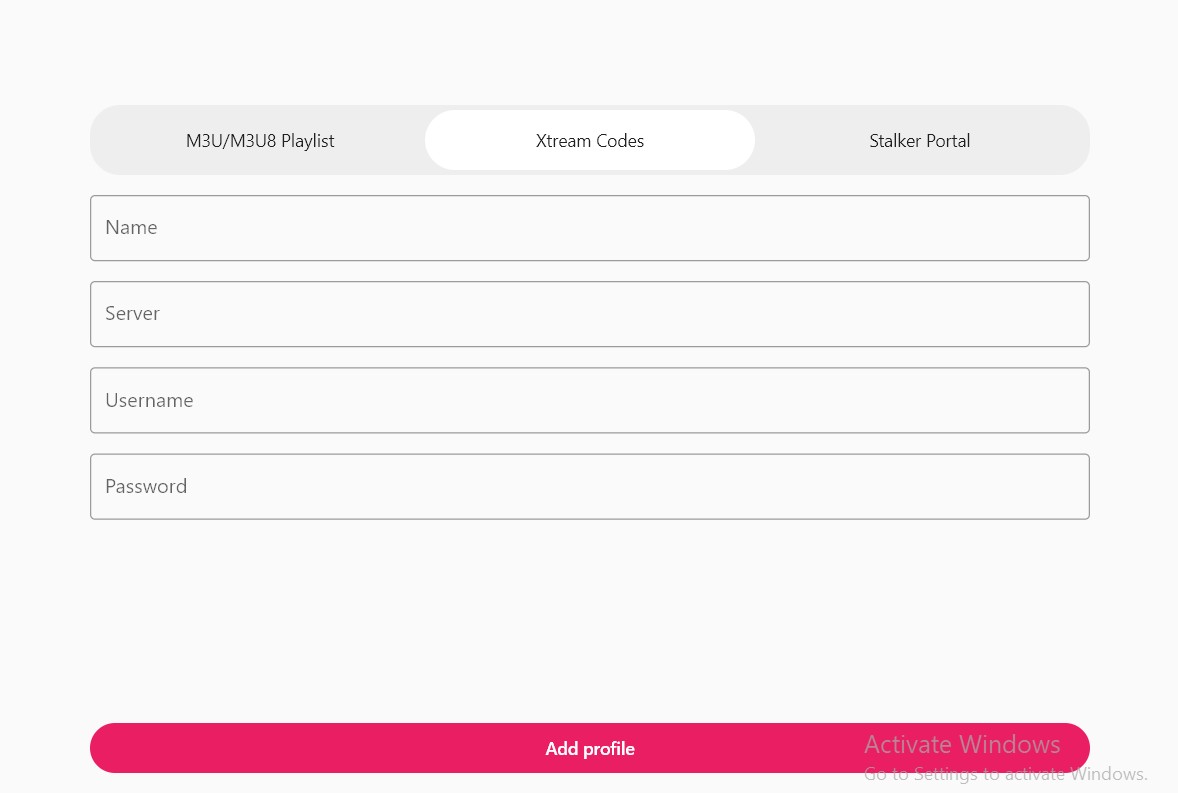
How to do it:
- Enter a playlist name: IPTV Nords
- Enter your URL
http://iptvnords.live:8080
- Enter your username and password
- Click Save — channels are auto-categorised
📧 Your Xtream Codes Credentials are in your IPTV Nords welcome email. Contact live chat if you need it resent.
4
Use Advanced Features — Chromecast, PiP, EPG, Offline and Dark Mode
IPTV Smarters Expert is the most feature-rich Windows IPTV app. Explore its advanced capabilities.
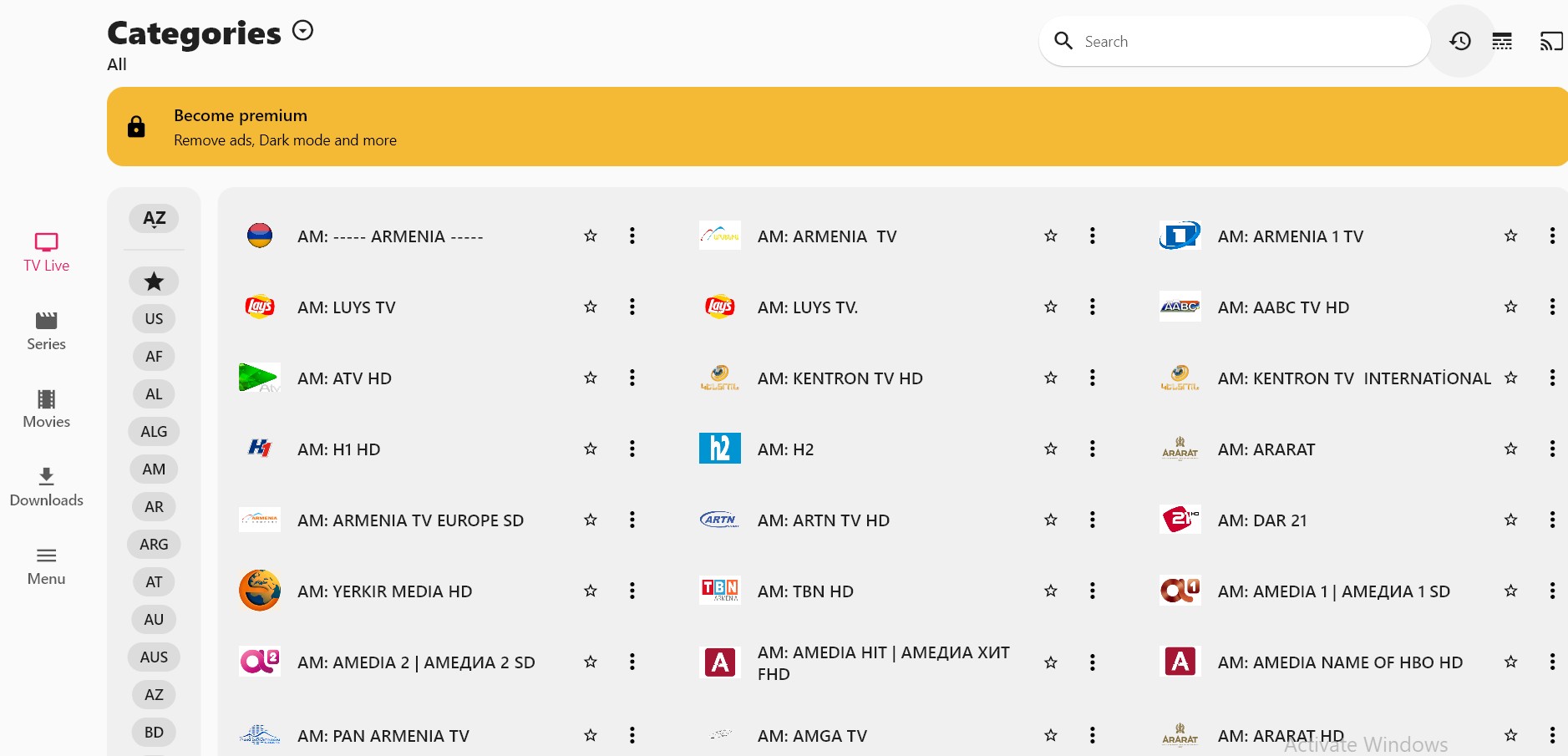
How to do it:
- Chromecast: Click the cast icon in the player to stream to your TV
- Picture-in-Picture: Click the PiP button to watch while using other apps
- EPG: Click the Guide tab for full programme schedules and reminders
- Offline viewing: Long-press any VOD item and click Download to save offline
- Dark mode: Go to Settings → Appearance → Dark Mode
- Multi-profile: Add multiple IPTV providers from Settings → Add Profile
💡 Upgrade to IPTV Expert Premium in Settings to remove ads and enable auto playlist updates.