





✓ Step-by-step guide
Install IPTV Nords
on TVIP S-Box
Follow these 4 simple steps to get IPTV Nords running on your TVIP S-Box using the built-in portal. No extra apps needed.
1
Open Settings from the main menu
Power on your TVIP S-Box. From the main menu, scroll down and select Settings, then click the TV icon on the right side of the settings screen.
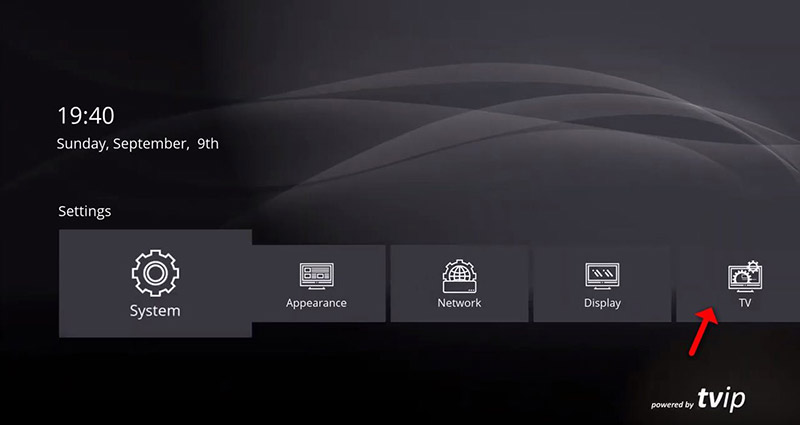
1 TVIP main menu — select Settings
How to do it:
- Power on your TVIP S-Box and wait for the main menu to load
- Using your remote, scroll down to Settings
- Click the TV icon on the right side of the settings screen
2
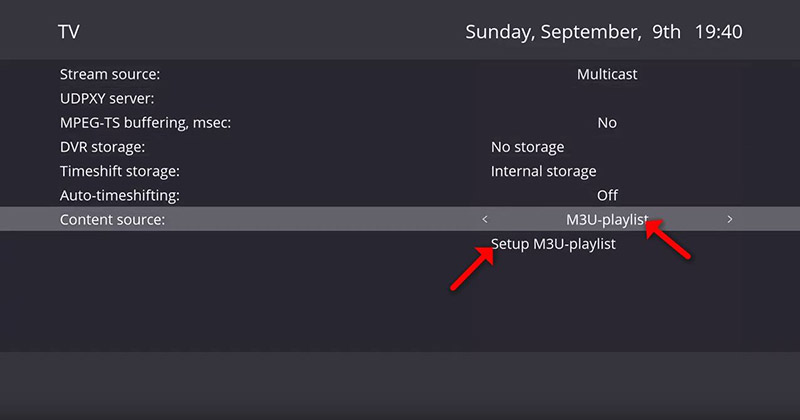
Set Content source to Web portal
In the TV settings, find the Content source option and change it to Web portal, then click Set up web portal.
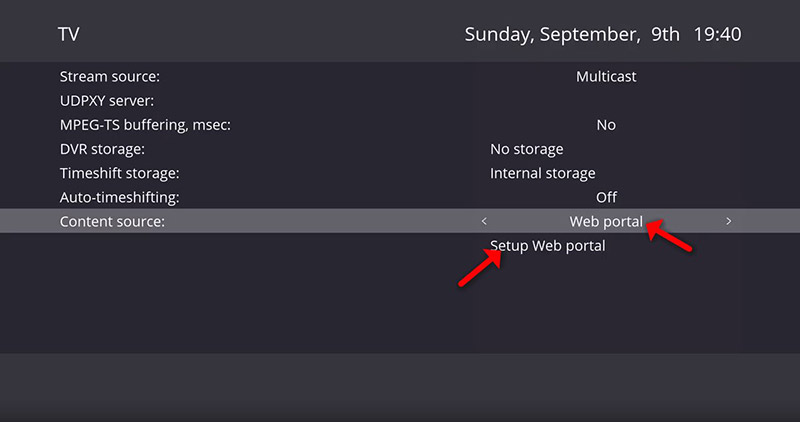
2 Change Content source to Web portal
How to do it:
- Find the Content source field in TV settings
- Change it to Web portal
- Click Set up web portal to open the portal configuration
3
Set API Mode to MAG and enter your Portal URL
In the web portal settings, set API Mode to MAG, then enter your IPTV Nords portal URL and click Apply.

3 Set API Mode to MAG
4 Enter your Portal URL and click Apply
How to do it:
- Set API Mode to MAG (use GSTB on older firmware if MAG is unavailable)
- In the Portal URL field, enter your IPTV Nords portal address from your welcome email:
http://server.iptvnords.com:PORT/c/
- Click Apply to save the settings
📧 Your Portal URL is in your IPTV Nords welcome email. Contact our live chat if you need it resent.
⚠️ Make sure you select MAG as the API Mode. Using the wrong mode will prevent channels from loading.
4
Restart and start watching!
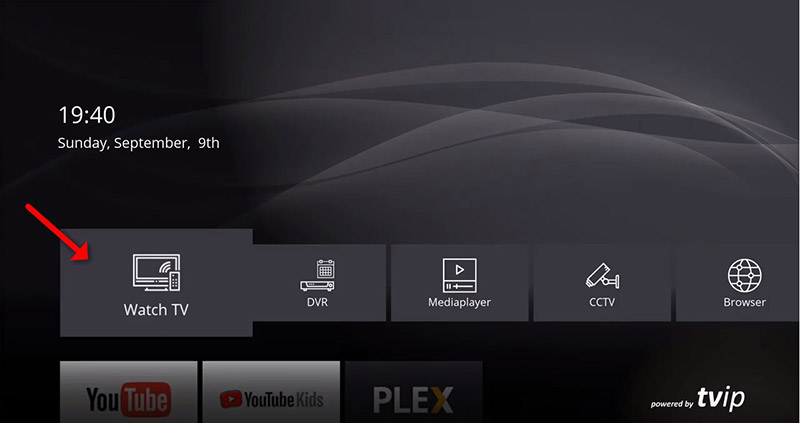
Click Restart to reboot the TVIP S-Box. Once it restarts, select Watch TV from the main menu — all your channels load automatically.
5 Select Watch TV — channels load automatically
How to do it:
- Click Restart — the box reboots in about 30–60 seconds
- From the main menu, select Watch TV
- Wait for the portal to load your playlist (may take a minute on first load)
- 19,000+ Live TV channels from 62+ countries — enjoy!
💡 For best quality set stream to HD or FHD. Our servers support up to 4K on compatible devices.