





✓ Step-by-step guide
Install GSE Smart IPTV
on Amazon Firestick
Follow these steps to get IPTV Nords running on your Amazon Firestick with GSE Smart IPTV.
1
Enable Unknown Sources on Firestick
GSE Smart IPTV is installed via APK on Firestick. First allow unknown app installations.
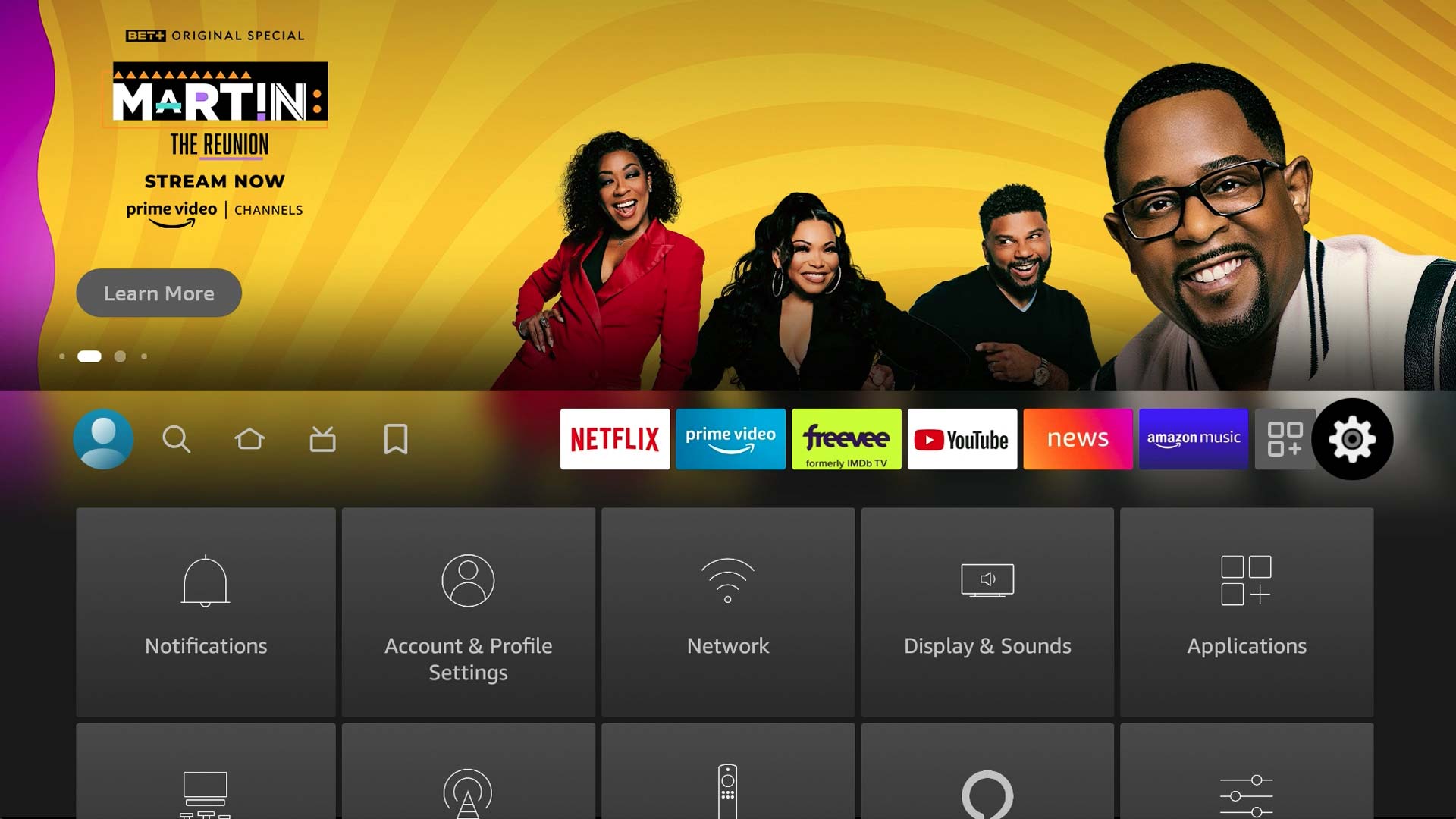
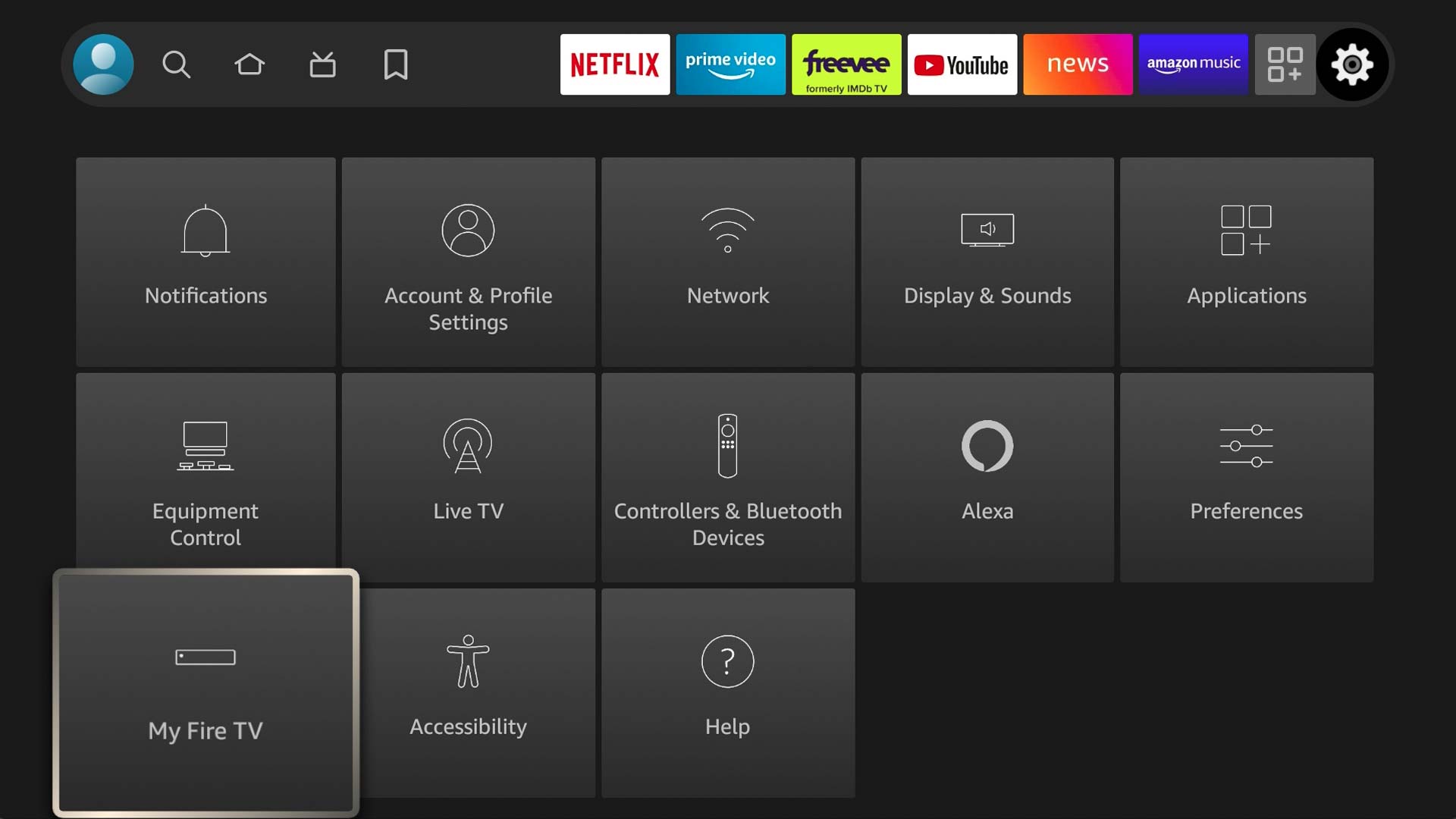
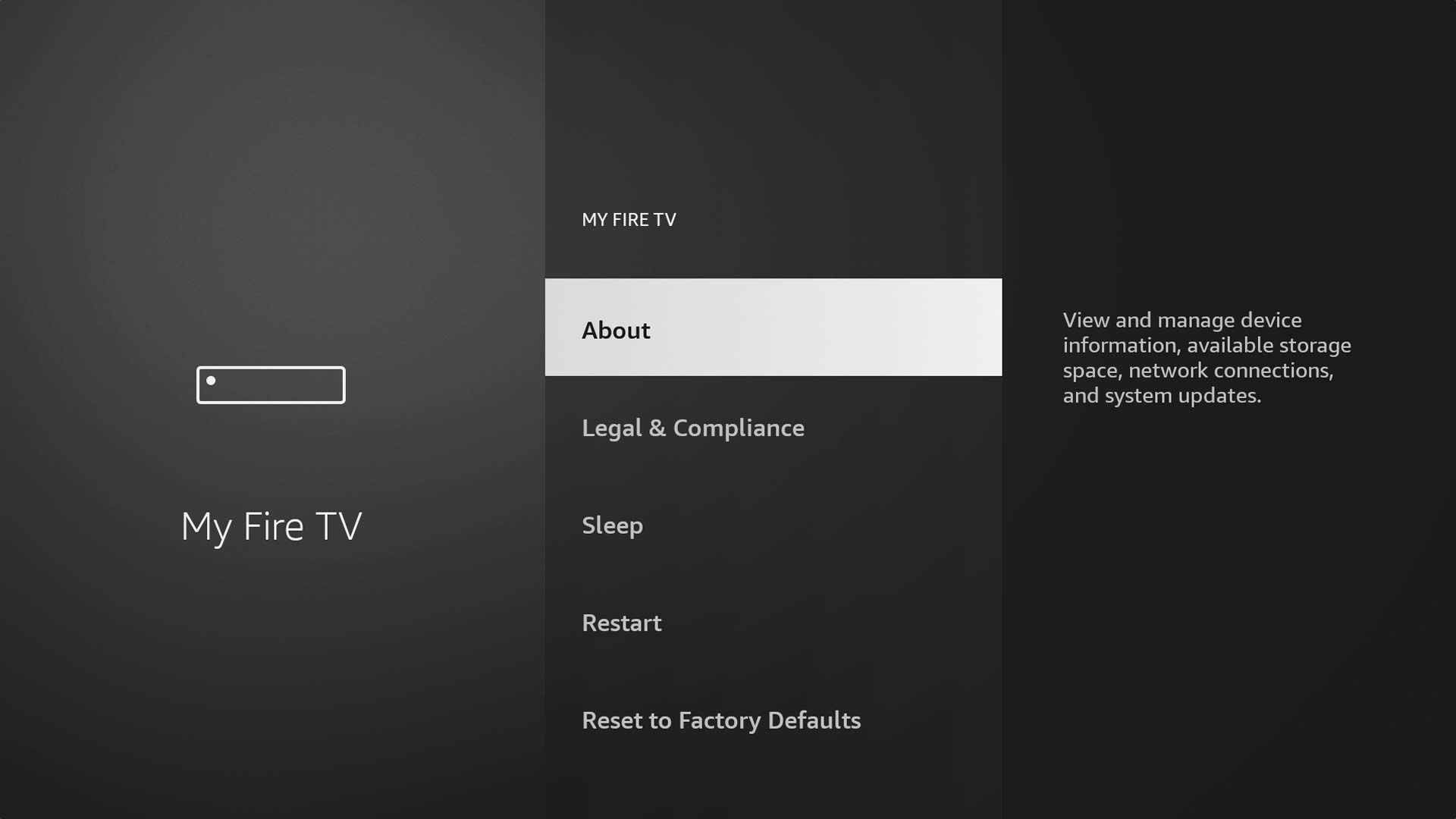
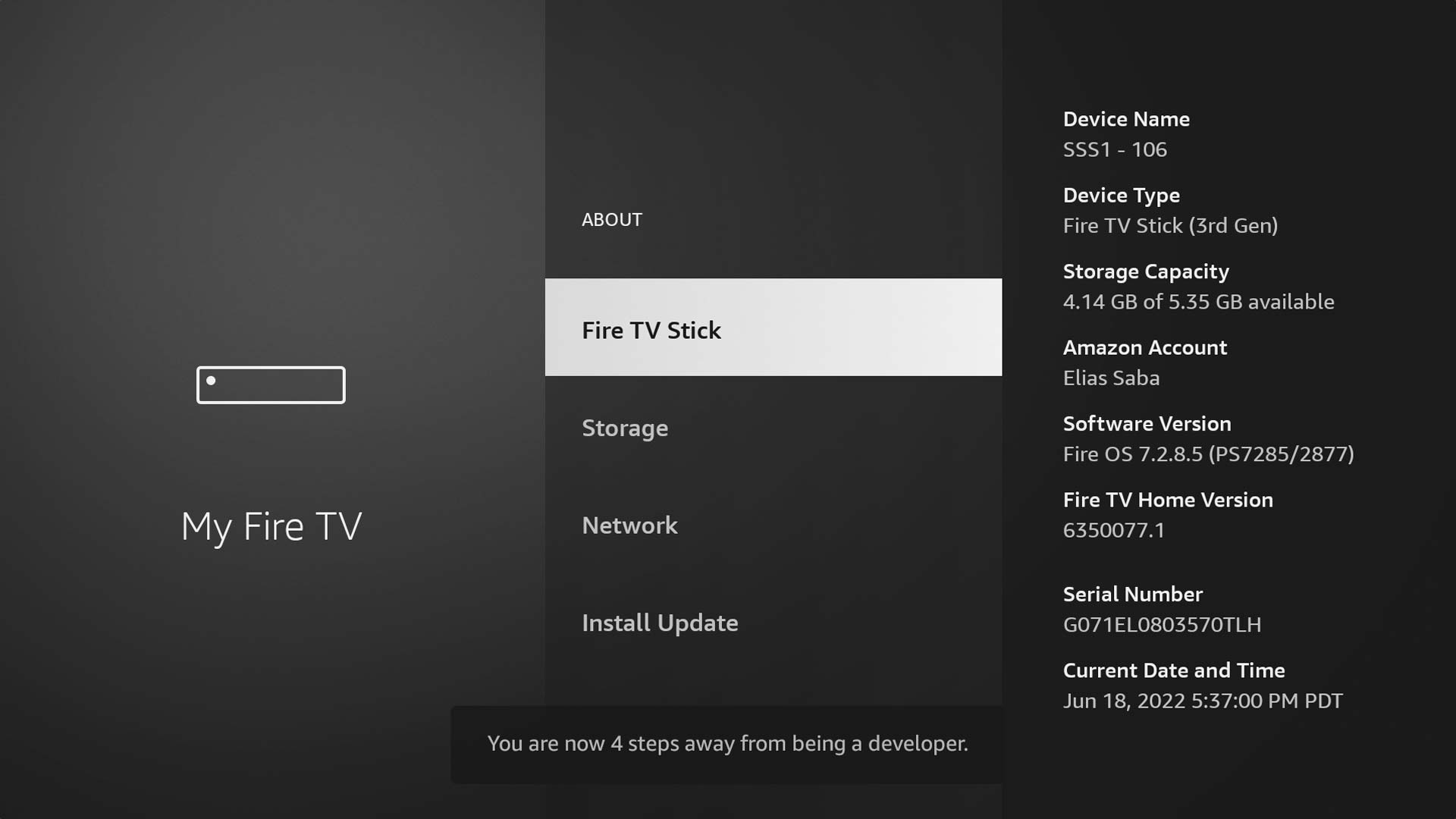
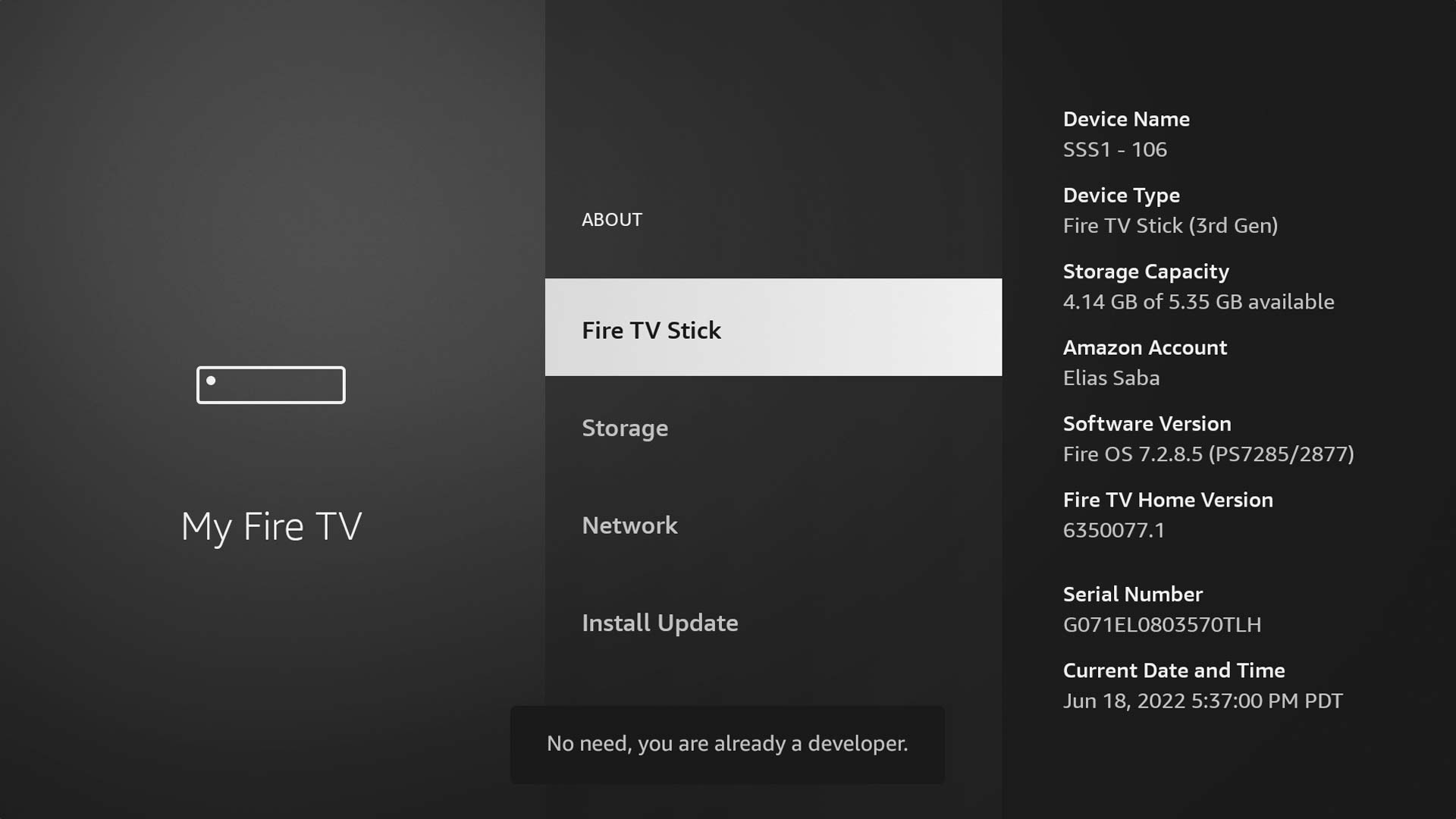
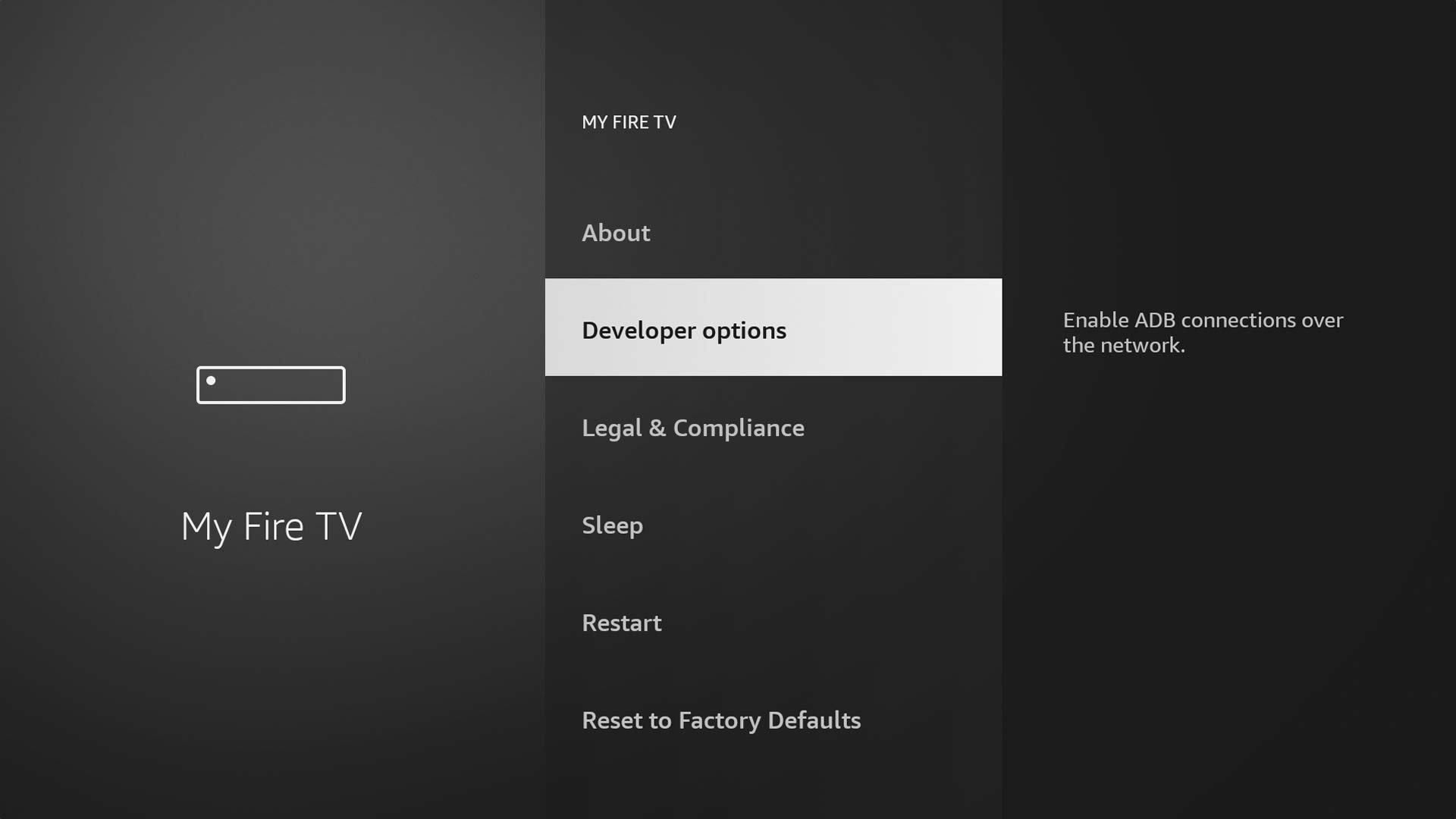
How to do it:
- Go to Settings on your Firestick home screen
- Select My Fire TV
- Tap Developer Options
- Toggle Apps from Unknown Sources to ON and confirm
💡 On older models this may be under Settings → Device → Developer Options.
2
Install Downloader App
Use the free Downloader app from the Amazon App Store to sideload GSE Smart IPTV.

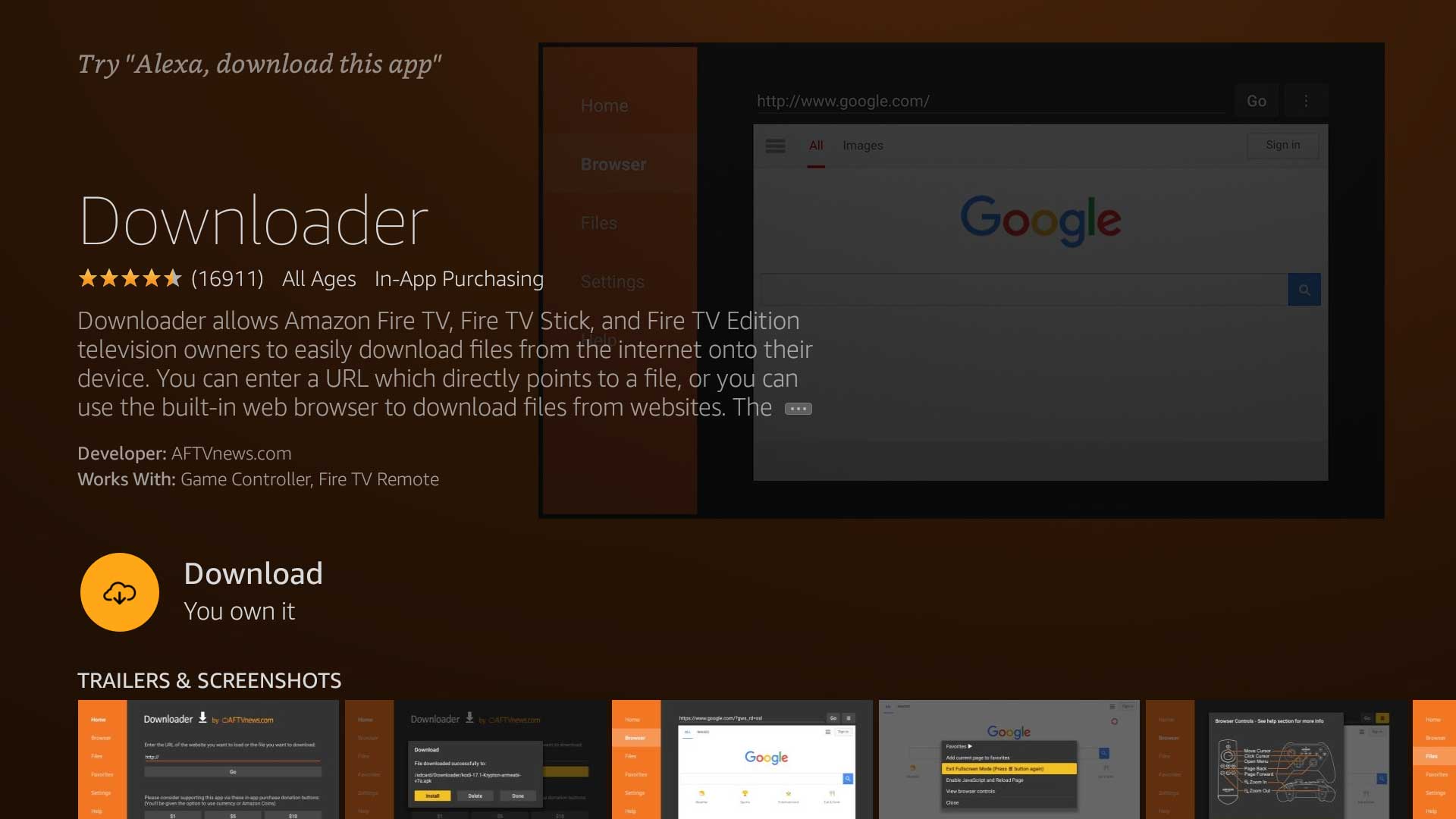
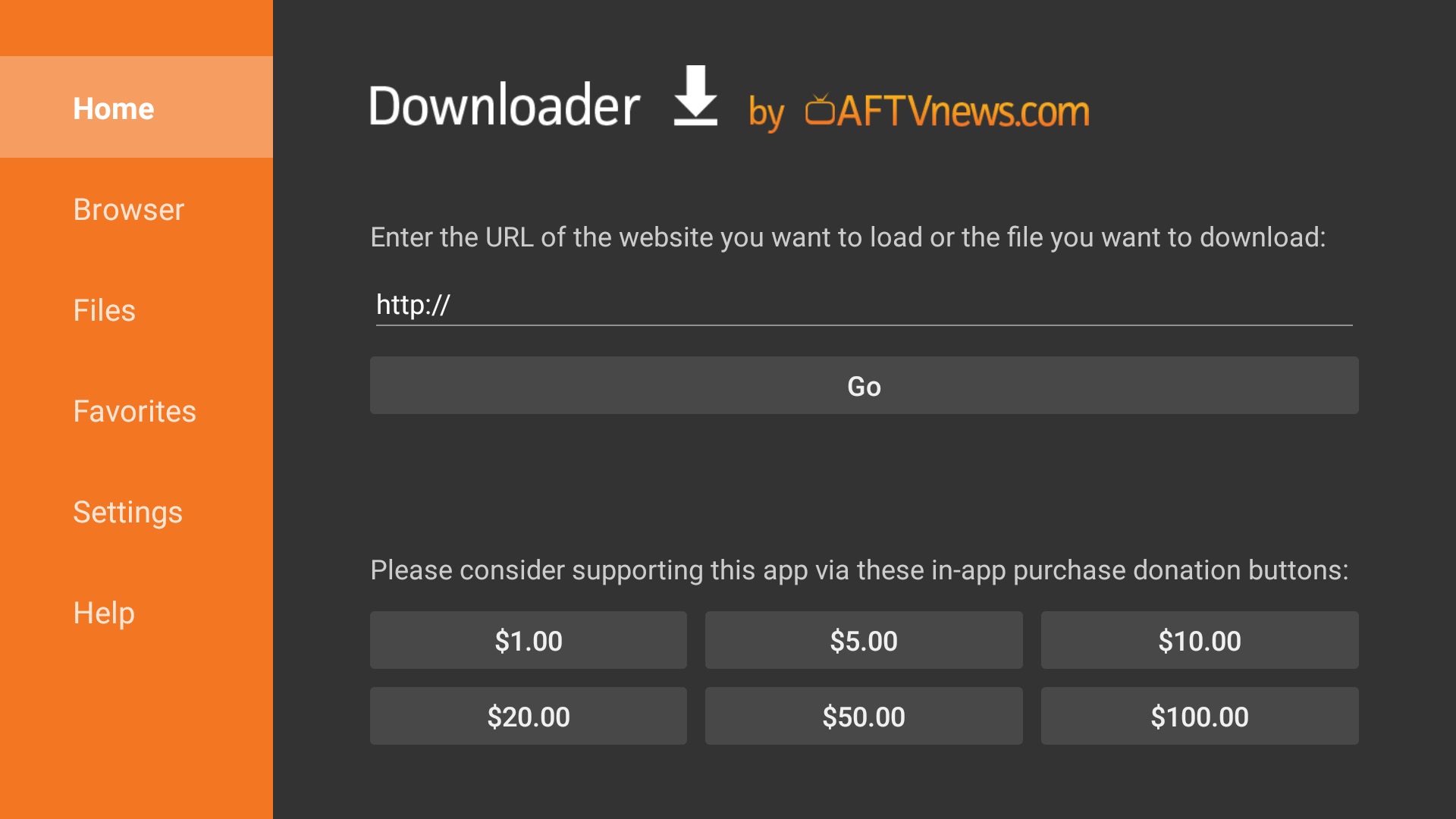
How to do it:
- From the home screen tap the Search icon (🔍)
- Type Downloader and select the orange Downloader app
- Tap Get or Download — it is free
- Once installed, open the Downloader app
3
Download and Install GSE Smart IPTV APK
Use Downloader to fetch the official GSE Smart IPTV APK.
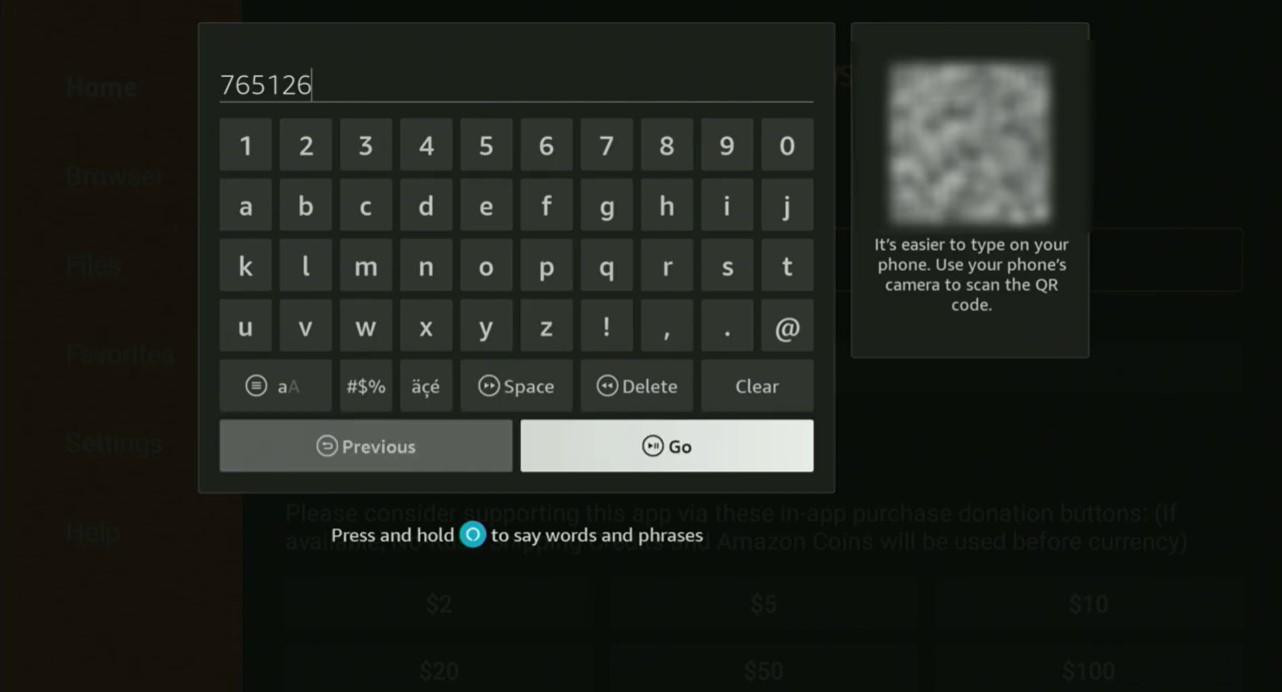
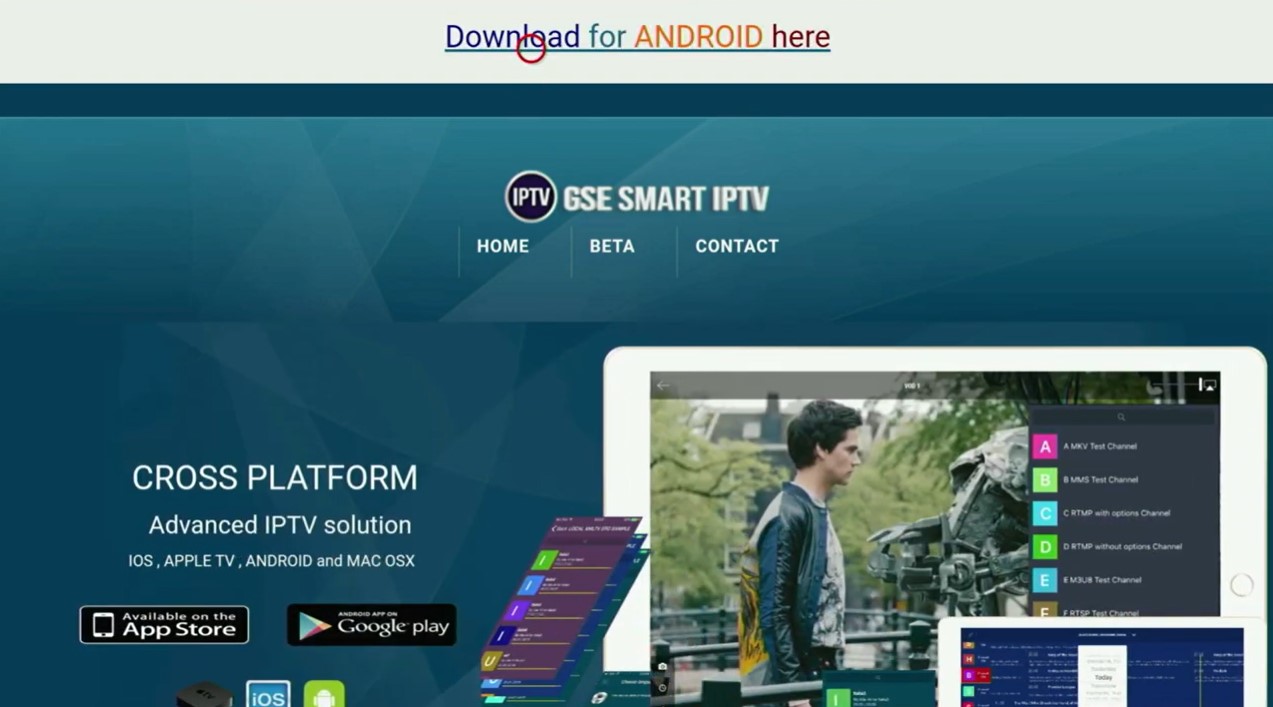
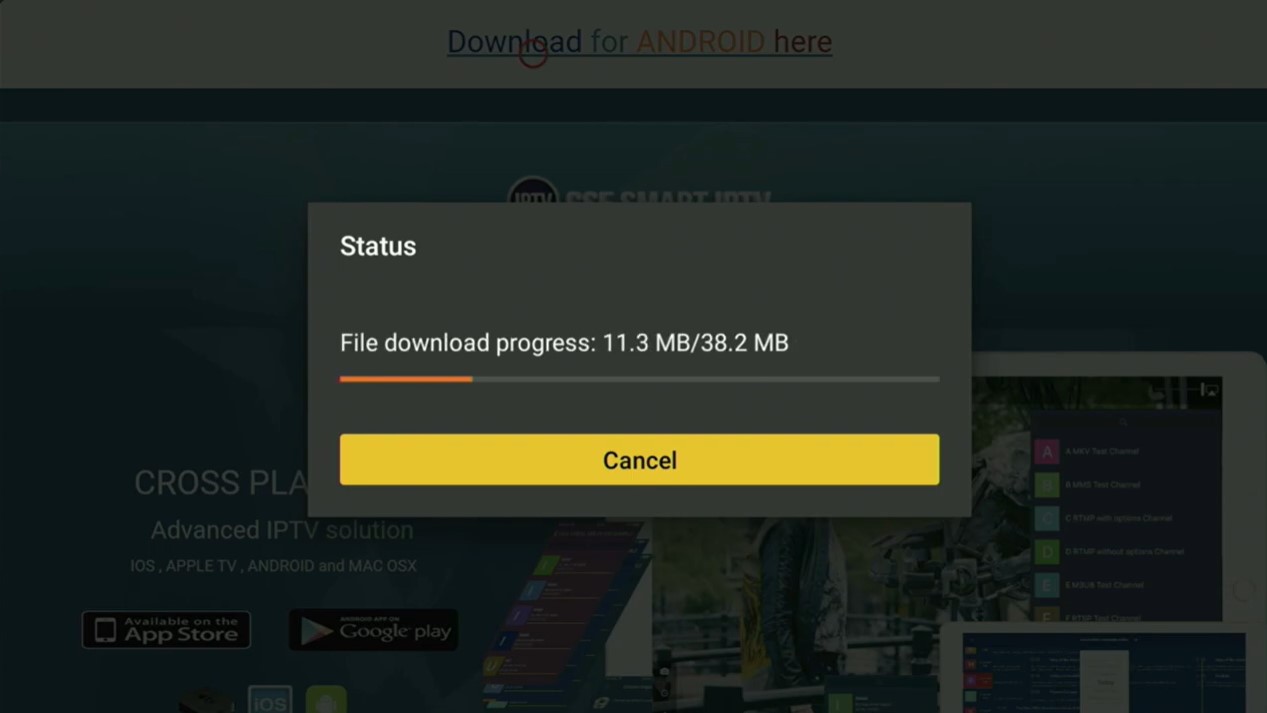
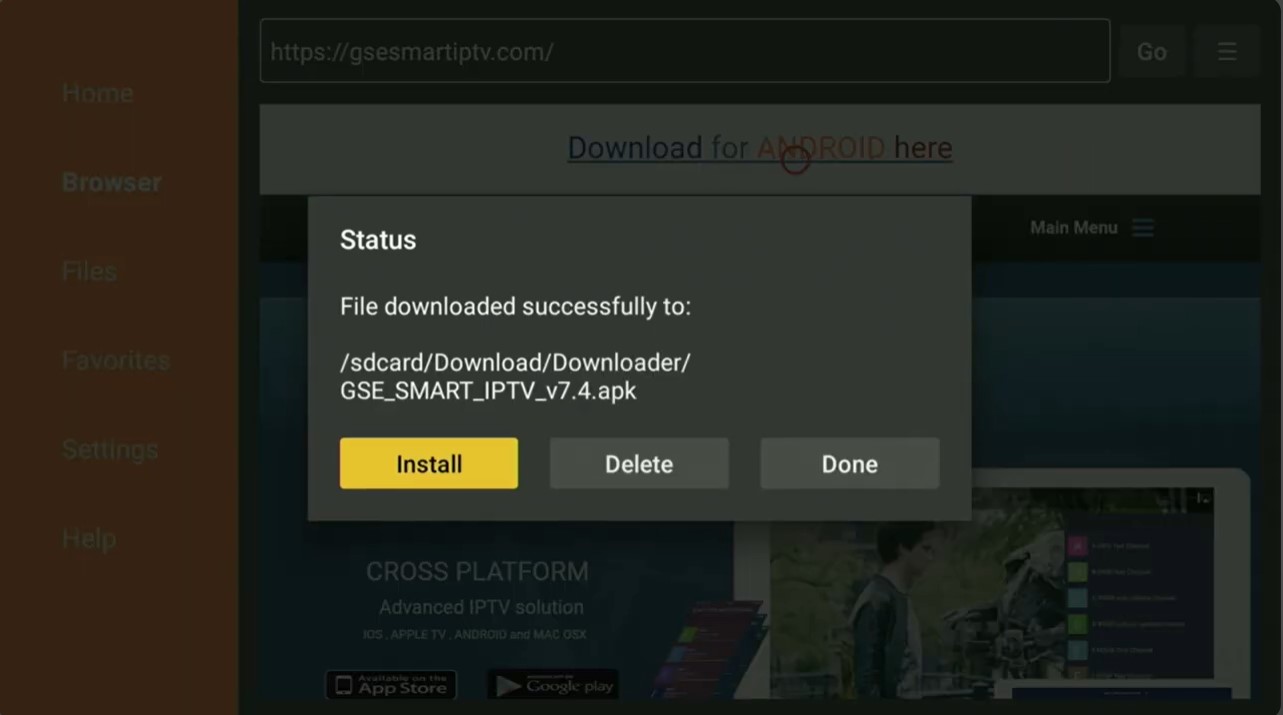
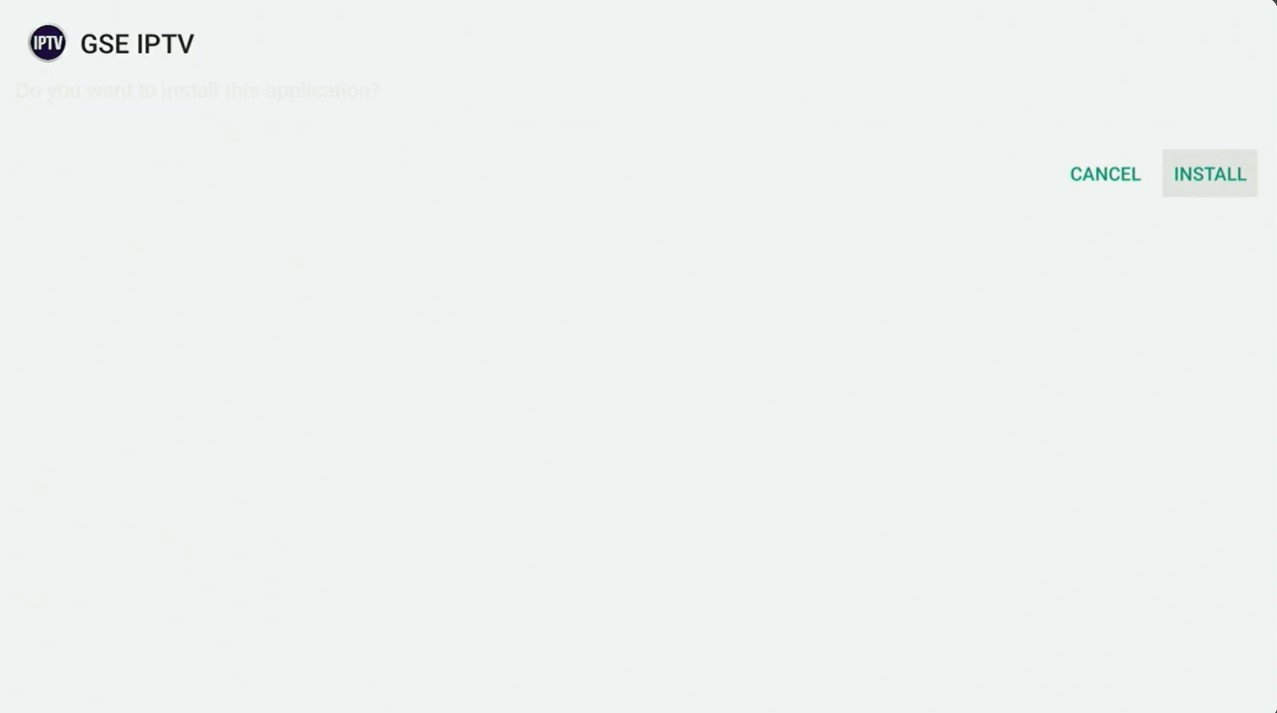
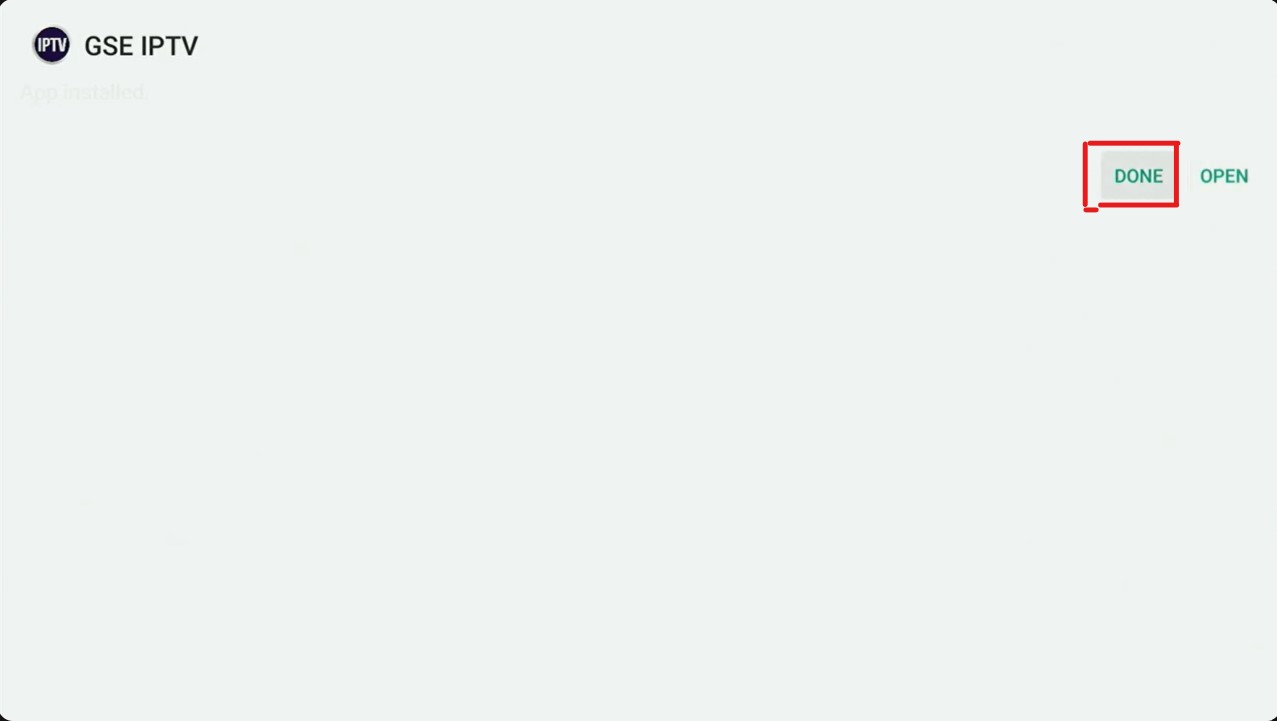
How to do it:
- Open Downloader on your Firestick
- In the URL bar type 765126 or search for GSE Smart IPTV APK
- Download the APK file
- Tap Install when prompted — then tap Done
⚠️ Only download APKs from official sources. Avoid third-party APK sites.
4
Open GSE Smart IPTV and Add Your Xtream Code Credentials
Launch the app and add your IPTV Nords playlist via the Xtream Code option.
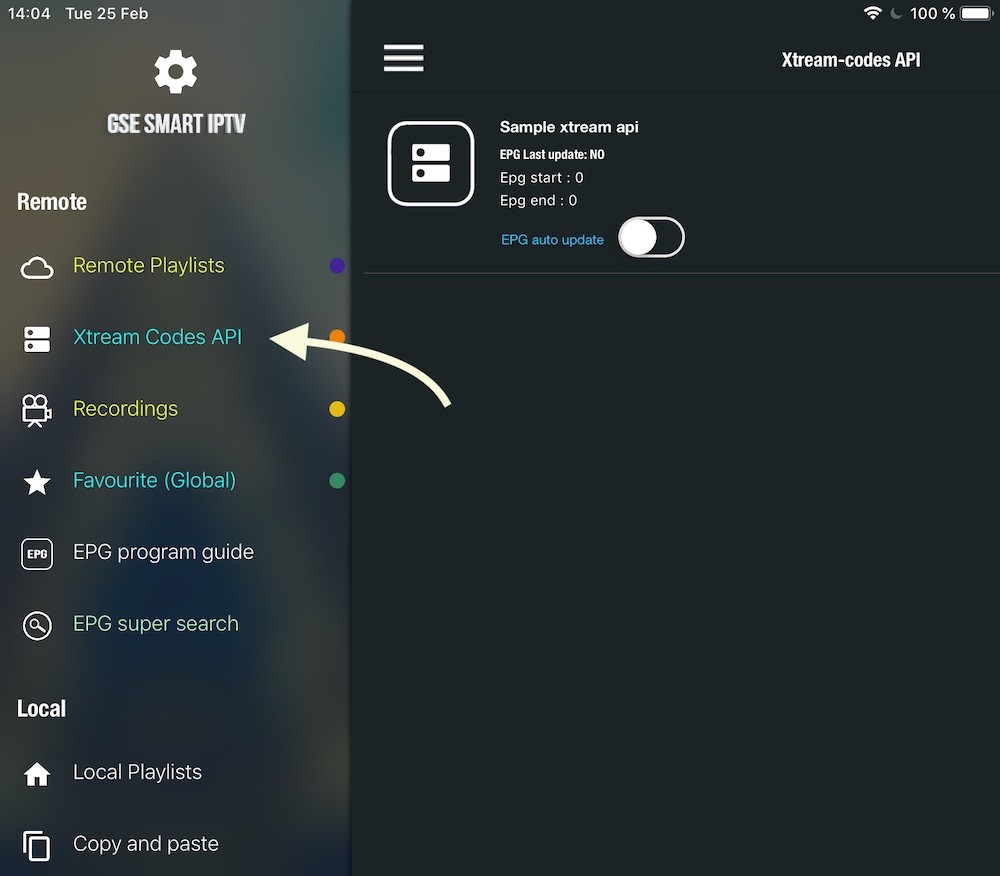
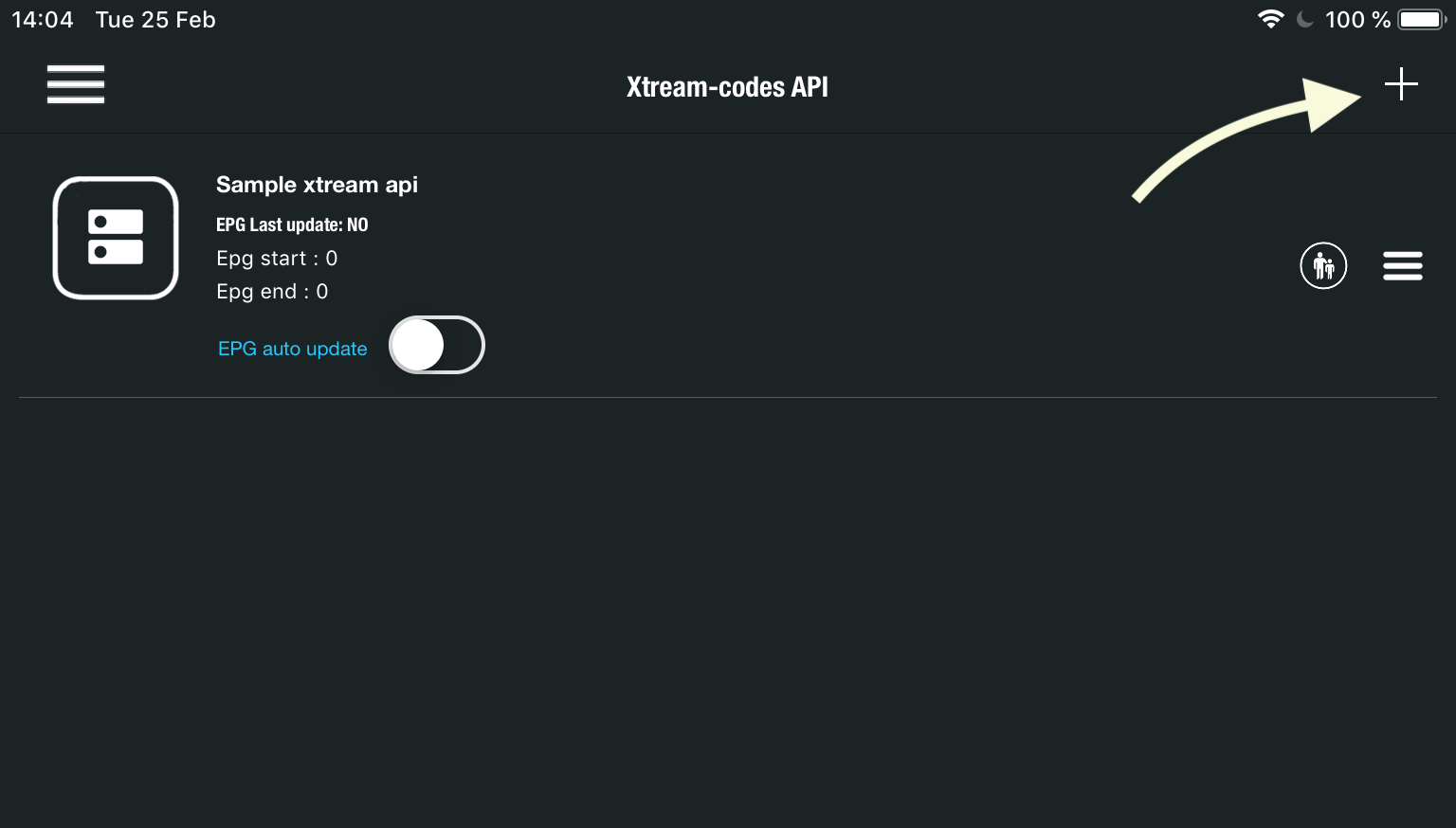
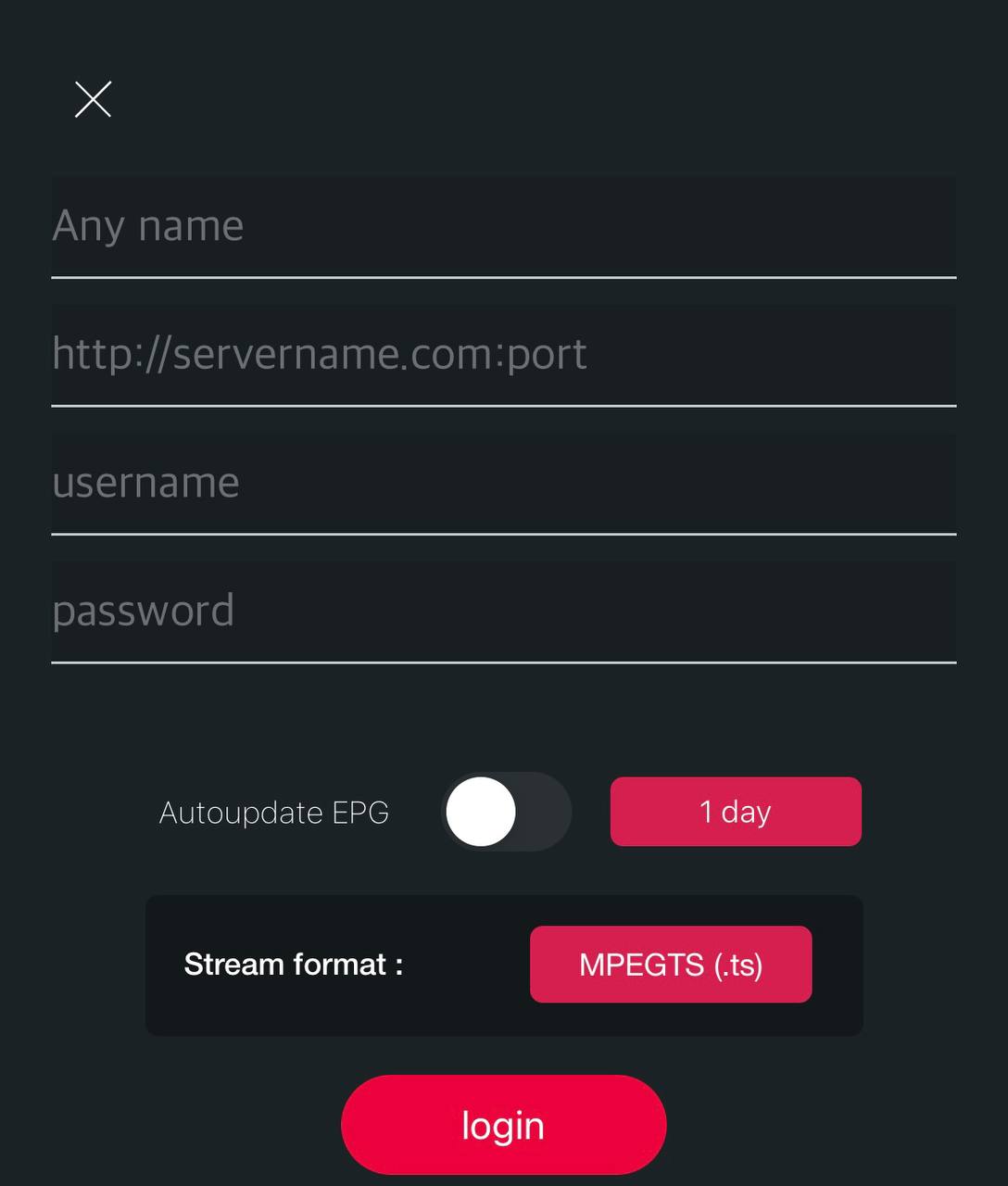
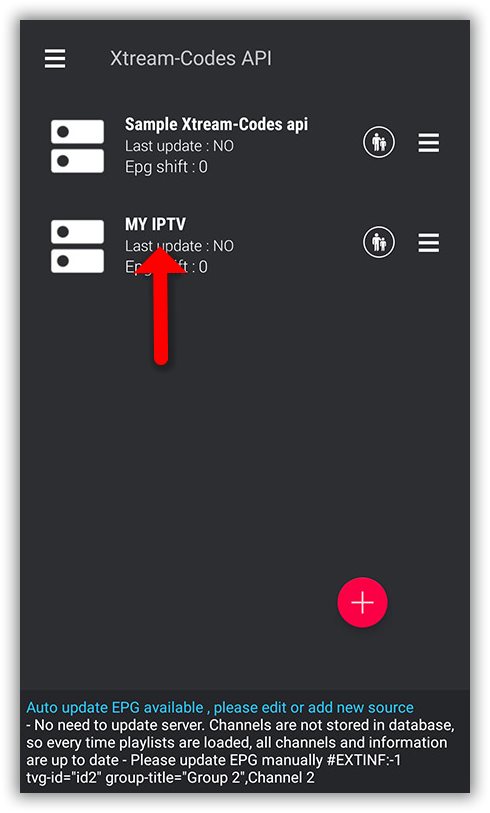
How to do it:
- Open GSE Smart IPTV from your Firestick apps
- Tap the + button at the top right
- Select Add XTREAM CODE
- Enter a name — type: IPTV Nords — then enter your credentials
- Tap Add and wait for channels to load
📧 Your Xtream Code credentials are in your IPTV Nords welcome email. Contact live chat if you need it resent.
5
Browse Channels and Start Watching
All 19,000 channels are loaded. Browse categories or use the EPG guide.
How to do it:
- Browse channels by category or use the Search function
- Tap any channel to start watching
- Use the EPG tab for the programme guide
💡 For best quality set stream to HD or FHD. Our servers support up to 4K on compatible devices.