





✓ Step-by-step guide
Install IPTV Bouquet Maker
on Enigma2/Vu+
Follow these simple steps to get IPTV Nords running on your Enigma2/Vu+ with IPTV Bouquet Maker.
1
Download & Install PuTTY
Get PuTTY from the official source to connect to your Enigma2/Vu+ receiver.
How to do it:
- Open the Microsoft Store and search for PuTTY
- Download and install the application
- Launch PuTTY once installation completes
2
Connect to Your Receiver
Enter the IP address of your Enigma2/Vu+ receiver and connect via Telnet or SSH.
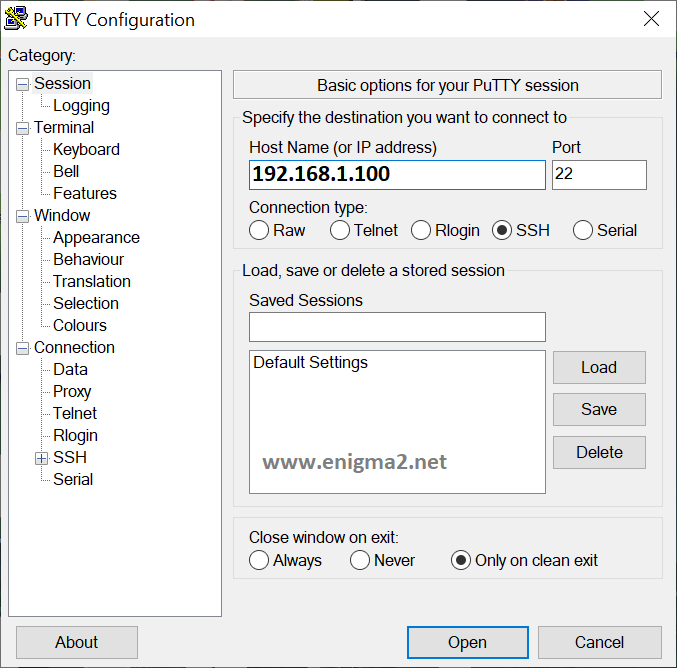
How to do it:
- Type the IP address of your receiver
- Choose Telnet or SSH
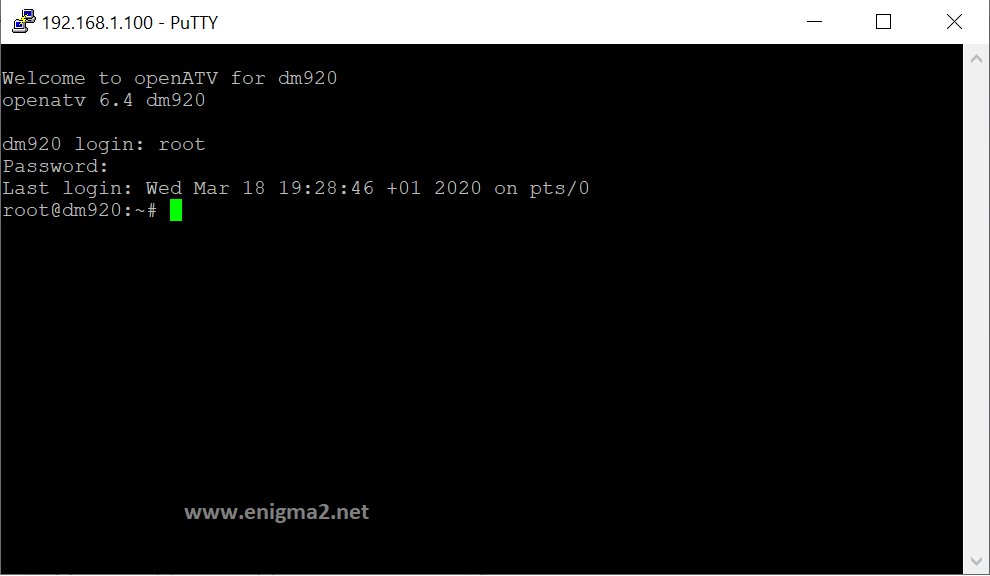
How to do it:
- Type User: root
- Leave the password empty and press Enter
- Some images such as OpenHDF may require a password — search online for the default password if needed
3
Run the IPTV Nords Script
Paste the Enigma script received from IPTV Nords into PuTTY to install your channels.

How to do it:
- Copy and paste the Enigma script received from IPTV Nords into PuTTY
- Press Enter to execute the command
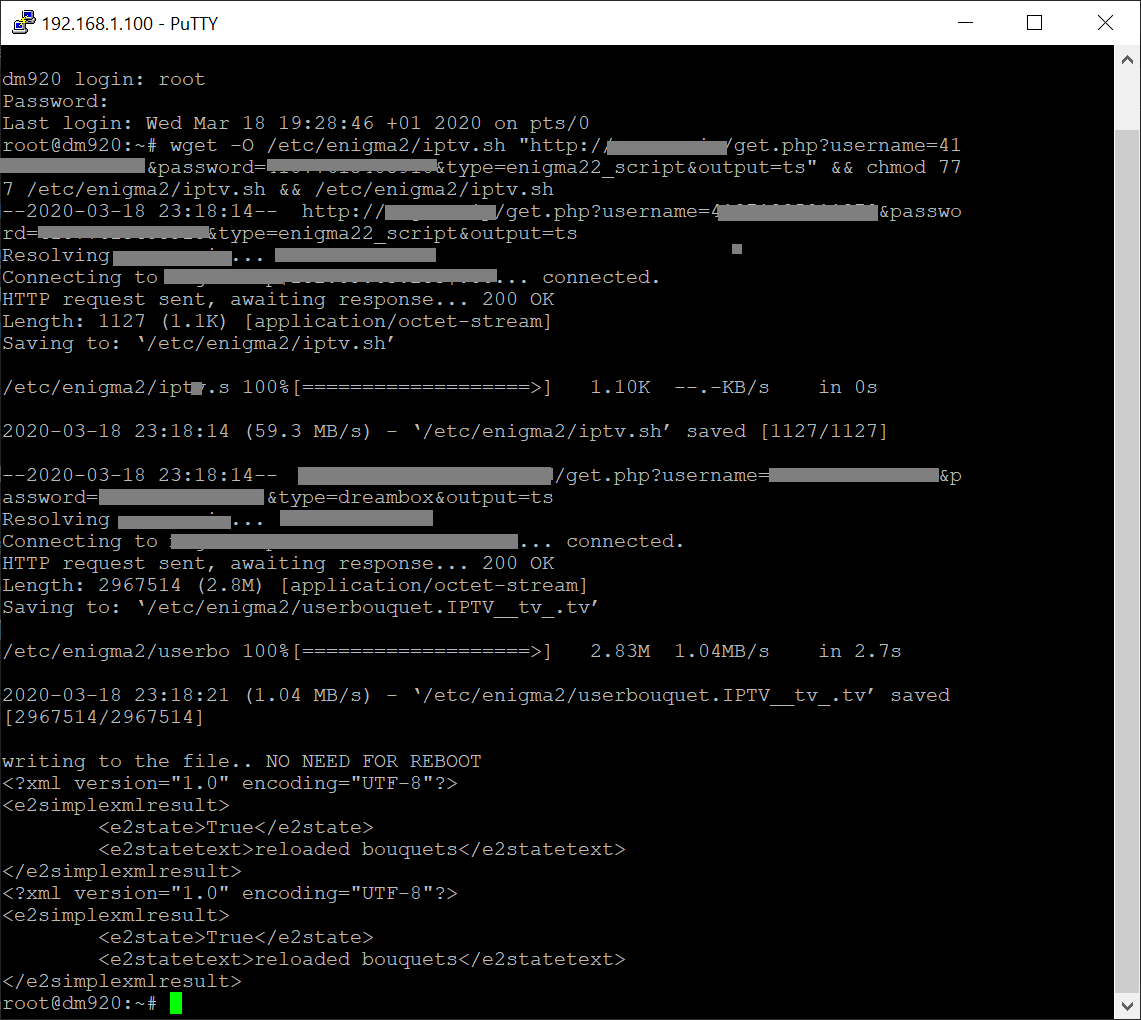
How to do it:
- Wait 5–30 seconds for the installation to complete
4
Find Your IPTV Nords Channels
Your channels are now installed. Access them from your receiver's channel list.
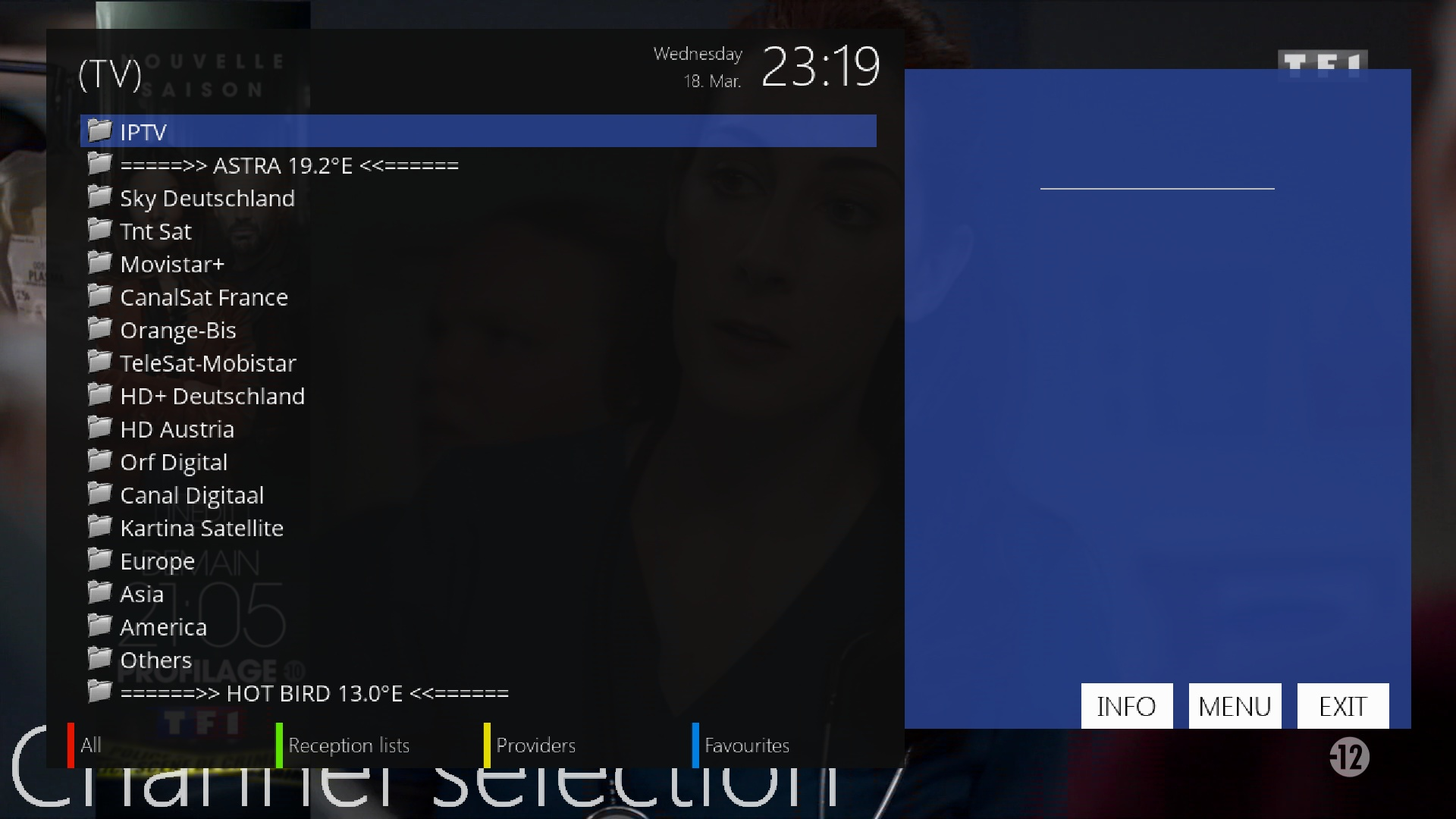
How to do it:
- Go to your channel list
- Press the BLUE button and select Favourites
- You will find the IPTV Nords folder — Congratulations! 🎉